
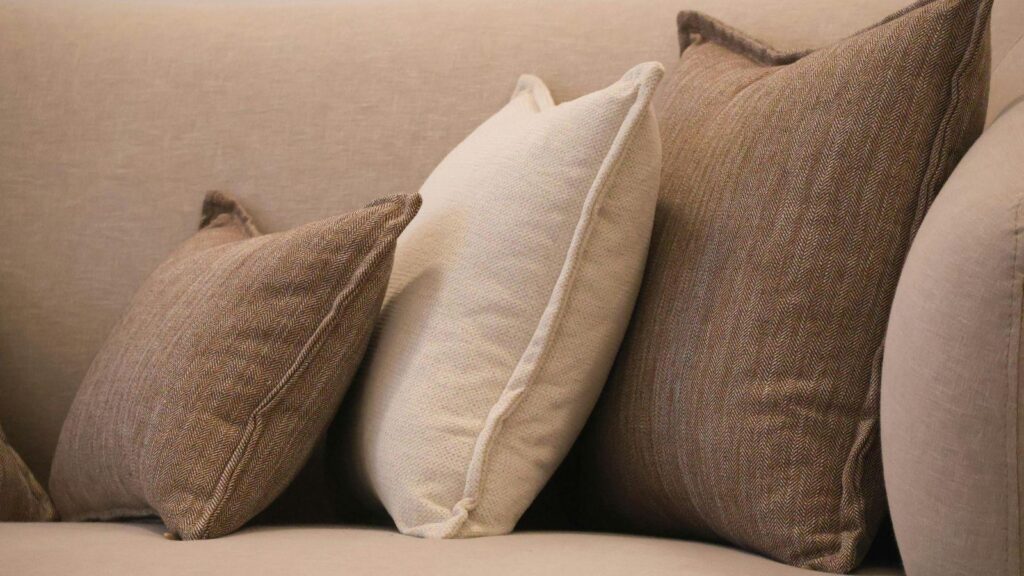
Custom throw pillows offer a controlled way to personalize a space, promote a brand, or create a one-off gift without redesigning an entire room. Because pillows are compact, they allow experimentation with typography, photography, and pattern at a manageable scale.
For non-designers, the biggest challenge is not creativity — it is structure. Decisions about size, layout, margins, color contrast, and print formatting often determine whether the final product looks intentional or improvised. Modern online tools reduce much of this friction by providing templates, alignment guides, and product previews.
An accessible starting point is creating the layout with a custom pillow from Adobe Express, which includes preset dimensions and browser-based editing tools. From there, the workflow becomes less about graphic design theory and more about following clear checkpoints and avoiding common production mistakes. The steps below outline a practical, tool-neutral process that works across most custom pillow platforms.
Step-by-Step Guide to Using Custom Throw Pillows
Step 1: Clarify Purpose and Start with a Structured Layout
Goal
Define what the pillow is meant to accomplish and begin with a template instead of a blank canvas.
How to do it
- Identify the use case (home décor accent, promotional item, photo gift, event merchandise).
- Write a one-sentence design goal (e.g., “Highlight our brand tagline clearly.”).
- Select pillow size and shape based on where it will be placed.
- Choose a pre-sized layout instead of building from scratch.
- Remove placeholder elements before adding your own content.
What to watch for
- Starting from an empty canvas can slow progress if you lack layout experience.
- Choosing size before confirming placement can cause proportion issues.
- Leaving template text layers hidden rather than deleted can create export errors.
Tool notes
For early idea organization, Notion can be useful to outline your design goal, copy variations, and layout plan before entering the design tool.
Step 2: Confirm Dimensions and Scale
Goal
Ensure the pillow fits its intended environment and the design scales properly.
How to do it
- Measure the sofa, bed, or chair where the pillow will sit.
- Compare square vs. rectangular proportions.
- Lock the final canvas size before heavy design edits.
- Keep focal elements centered.
- Preview how the design looks at full scale on screen.
What to watch for
- Enlarging small graphics can cause pixelation.
- Text-heavy layouts can look crowded on smaller pillow sizes.
- Switching sizes mid-design may shift margins and spacing.
Tool notes
For tracking measurements and confirming dimensions across projects, a simple spreadsheet in Google Sheets can help document sizes, margins, and layout specs.
Step 3: Add Images with Print Resolution in Mind
Goal
Use images that will print clearly on fabric.
How to do it
- Upload images that are high resolution (ideally 300 DPI).
- Avoid screenshots or compressed social media downloads.
- Adjust brightness and contrast slightly upward for fabric printing.
- Crop carefully to preserve key subjects.
- Zoom to 100% to check for blurriness.
What to watch for
- Fabric absorbs ink differently than paper.
- Very dark photos may print darker than expected.
- Small image files stretched to fill space will degrade in quality.
Tool notes
If you need to verify resolution or resize files precisely before upload, tools like TinyPNG or image resizing utilities can help maintain clarity without oversizing files.
Step 4: Add Text That Remains Legible at a Distance
Goal
Ensure typography can be read from across a room.
How to do it
- Use bold, simple fonts.
- Limit the design to one or two typefaces.
- Increase spacing between letters slightly if printing on textured fabric.
- Check contrast between text and background.
- Test legibility by viewing the screen from several feet away.
What to watch for
- Script fonts may lose clarity when printed.
- Thin fonts can fade visually on textured fabric.
- Long quotes may require line breaks for balance.
Tool notes
For font selection guidance outside the editor, Google Fonts can help you compare legible type options before committing to a final style.
Step 5: Optimize Color and Contrast
Goal
Prevent washed-out or muddy colors in the final print.
How to do it
- Increase contrast between foreground and background.
- Avoid pale text on white or cream fabric.
- Stick to 2–4 core colors for clarity.
- Preview the design on a pillow mockup.
- Recheck colors on a second screen if possible.
What to watch for
- Highly saturated digital tones may print differently.
- Subtle gradients may not translate clearly on fabric.
- Very light gray text can disappear in bright rooms.
Tool notes
For checking color harmony before finalizing, Coolors can help you test palettes quickly and confirm visual balance.
Step 6: Review Safe Margins and Edge Placement
Goal
Keep important content away from seams and trim lines.
How to do it
- Turn on margin or safe area guides.
- Keep text at least half an inch from edges.
- Extend background colors fully to bleed areas.
- Recheck alignment after resizing elements.
- Preview the final crop view carefully.
What to watch for
- Text too close to seams can distort.
- Backgrounds not extended into bleed areas may produce borders.
- Center alignment can shift if objects are grouped incorrectly.
Tool notes
For documenting print-ready settings before export, project tracking tools like ClickUp can help confirm that resolution, bleed, and spacing checks are complete before ordering.
Step 7: Final Review and Order Planning
Goal
Complete a technical review before placing the order.
How to do it
- Double-check spelling and grammar.
- Confirm resolution settings.
- Verify correct size and fabric selection.
- Review preview images for edge alignment.
- Confirm shipping timeline and delivery address.
What to watch for
- Typos often appear during the final review.
- Bulk orders may require longer production time.
- Incorrect shipping details can delay delivery.
Tool notes
For coordinating event deadlines or distribution logistics, Trello boards can help track production status and delivery milestones.
Common Workflow Variations
Photo-Focused Design
Use one high-quality image as the centerpiece. Adjust contrast and crop carefully to avoid cutting off faces or focal elements.
Typography-Centered Minimalism
Limit the design to a short phrase in a bold font. Use generous margins to avoid crowding.
Pattern-Based Accent Pillow
Repeat a small motif consistently. Maintain even spacing and alignment across the canvas.
Small-Batch Merchandise
Create one base design file and duplicate it with minor text variations to maintain consistency across multiple pieces.
Before You Start Checklist
Pre-Export / Pre-Order Checklist
Common Issues and Fixes
Blurry images
Replace with higher-resolution files or reduce the print area of the image.
Text distortion near edges
Move text inward and verify safe margin guides.
Unexpected color changes
Increase contrast and avoid very subtle tones.
Cropping problems
Always preview the trim view before confirming.
Flat-looking design
Increase contrast or add subtle visual hierarchy with spacing adjustments.
How To Use Custom Throw Pillows: FAQs
Can someone without design experience create custom throw pillows?
Yes. Using templates and following a structured checklist reduces the need for advanced design skills.
Is starting with a template better than uploading a finished file?
For beginners, templates are often faster and safer because dimensions and bleed are pre-configured.
What resolution should images be for fabric printing?
High resolution (around 300 DPI) is recommended for sharp results.
What is the most common mistake?
Ignoring safe margins and using low-resolution images.
How long does production usually take?
Production timelines vary by provider and order size. Always confirm estimated delivery dates before finalizing.